Use built in tools for layout and design
As a rule of thumb, you should use the built in functionalities of Word for styling and laying out your document whenever available. These options often add hidden information that allows blind users to understand the context and presentation of the information. This information is not present if you manually recreate the same style or layout in other ways.
Examples of common mistakes and what to do instead:
- Don't use one-off font changes (i.e, manually bold and/or enlarge) for headings.
Instead, use "Styles" for consistency and accessible tagging.
- Don't create a list just by adding the numbering or bullets as text in front of the items
Instead, use the bullets, numbering, and multilevel list options in the "Paragraph" section.
- Don't create column layouts using tables.
Instead, use the Columns option under the "Layout" tab.
- Don't add lots of spaces or newlines for spacing.
Instead, use margin and indentation options in the "Paragraph" section.
- Don't reinvent your design every time you make a document.
Instead, use the Design tab to save and reuse a consistent styling.
"Styles" for title, headings, and body
The "Styles" pane is under the "Home" tab. The pane may appear as a button on small screens.
.png) "Styles" pane on a small screen
"Styles" pane on a small screen
 "Styles" pane on a large screen
Usage
- Give your document a "Title" and optionally a "Subtitle" using the "Title" style
- Break down the sections of your document using a hierarchy of Heading 1, Heading 2, Heading 3, etc.
- Never skip heading levels. This means split the main sections of your document up using Heading 1s, then split up those sections into sub-sections with Heading 2s, and those into sub-sub-sections with Heading 3s, etc.
- Style other body text using the "Normal" style.
Beyond accessibility, heading styles allow Word to generate a Table of Contents, as well as a PDF bookmarks.
Example
Title, Headings, and Body.docx and Title, Headings, and Body.pdf
The styles used for each paragraph are highlighted in yellow.
Bullets, numbering, and multilevel lists
The bullets, numbering, and multilevel lists commands are on the "Paragraph" pane under the "Home" tab. The pane may appear as a button on small screens.
.png) "Paragraph" pane on a small screen
"Paragraph" pane on a small screen
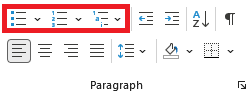 "Paragraph" pane on a large screen, with list command outlined in red