Creating Accessible PDFs with PowerPoint
For basic (i.e. read-only, content focused) PDFs, the steps are relatively simple:
- Write accessible content
- Save As a PDF, preserving accessible properties
1. Write accessible content
We direct you to read WebAIM's article "PowerPoint Accessibility".
In summary:
2. Save As a PDF, preserving accessible properties
When exporting to PDF, you must follow these steps to ensure correctly markup and metadata is preserved in the final PDF. Otherwise, the efforts to structure the content accessibly will be lost.
- Open the "File" tab
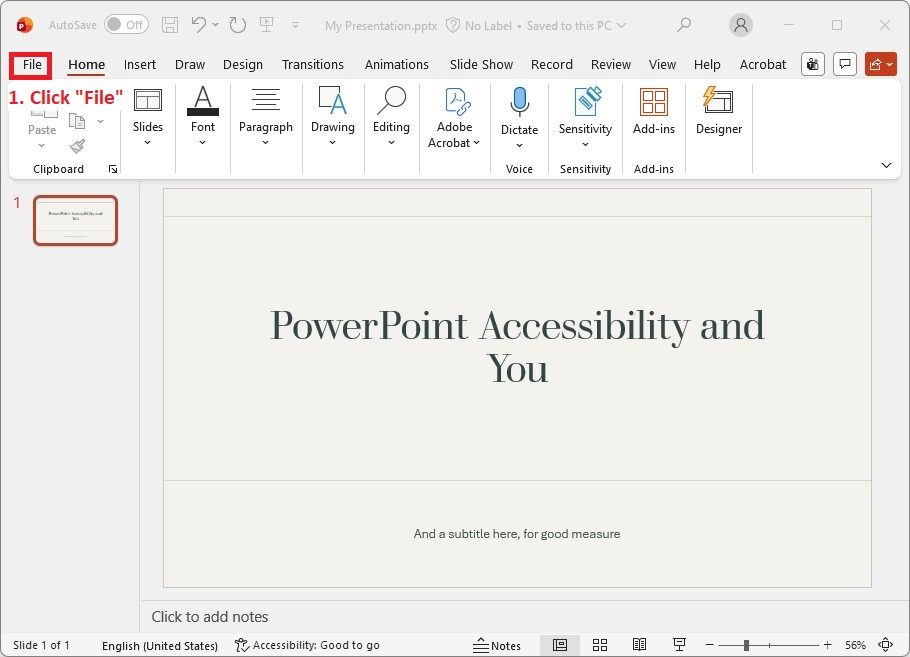
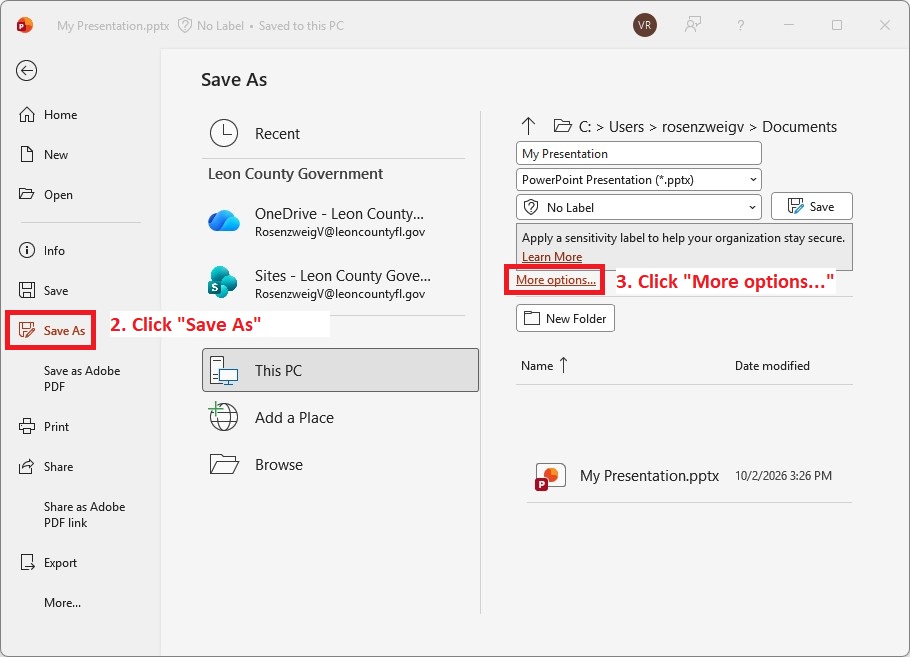
- Navigate to " Save As"
- Select "More Options..."
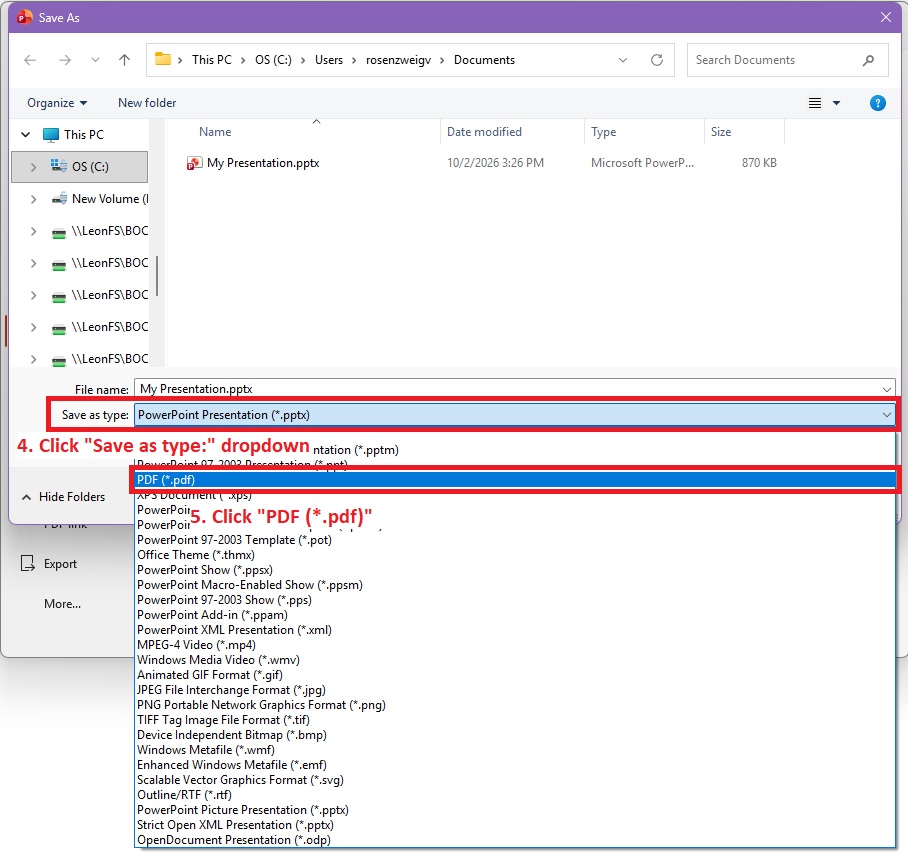
- Open the "Save as Type:" Dropdown
- Select "PDF (*.pdf)"
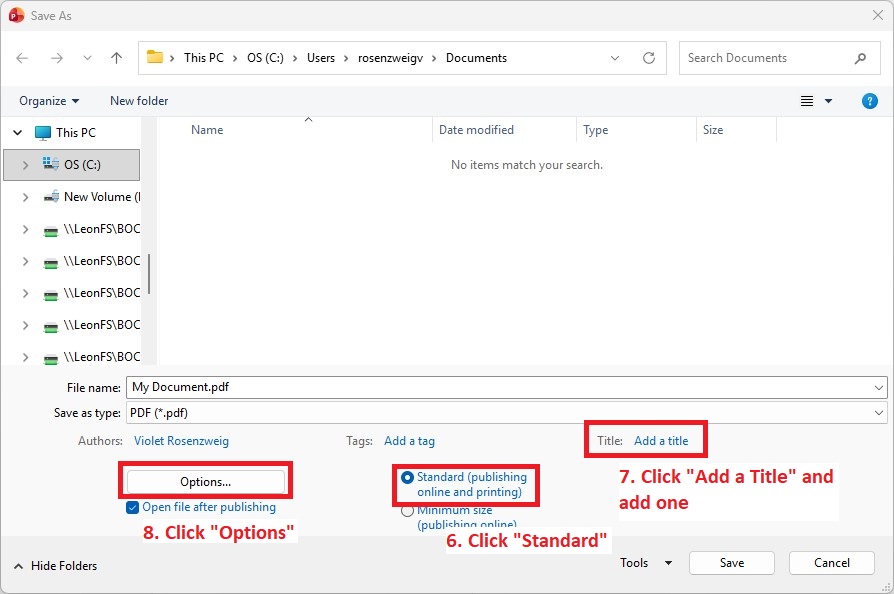
- Under the "Optimize for:" label, select "Standard (publishing online and printing)" if not already selected
- Under the "Title:" label, add a title.
- PDFs must have a title to be accessible (WCAG 2.1 SC 2.4.2). Always ensure you set an appropraite title. This is particularly easy to forget for documents where you are updating from a previous version with an existing title where it should be changed (for example, an agenda, or meeting minutes).
- Click "Options..." to open the options menu
- Verify the following options are selected. The other options are up to you, but these are critical for accessibility.
- Check "Document properties"
- Check "Document structure tags for accessibility
- Do not check "PDF/A compliant when not encrypted via Microsoft Information Protection"
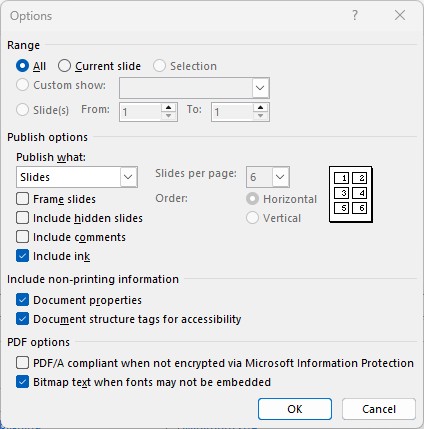
- Click "OK" to dismiss the options dialog, and "Save" to save the PDF