How to Add Microsoft Authenticator to an Account
1. On a computer, not your phone, go to https://aka.ms/mfasetup
2. If not already, sign in using your full WORK email address and password.
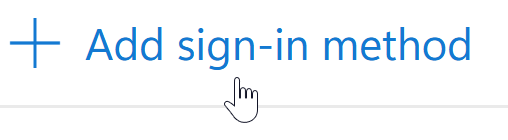
3. Once logged in you will be presented with the Security Info page. Find and click “Add sign-in method”.
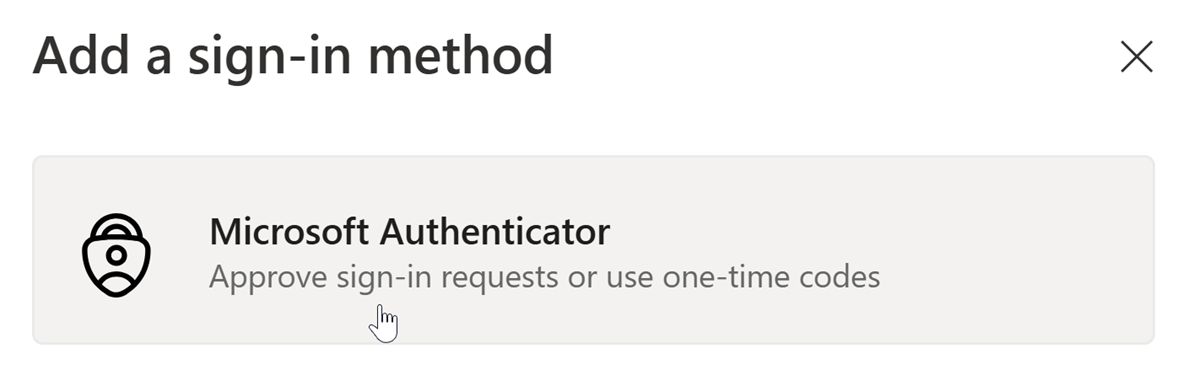
4. On the next screen, select “Microsoft Authenticator”
5. On your mobile device, use the link below or search for “Microsoft Authenticator” and install it, if not already installed, then click Next.
 - https://go.microsoft.com/fwlink/p/?linkid=2168850
 - https://go.microsoft.com/fwlink/p/?linkid=2168643
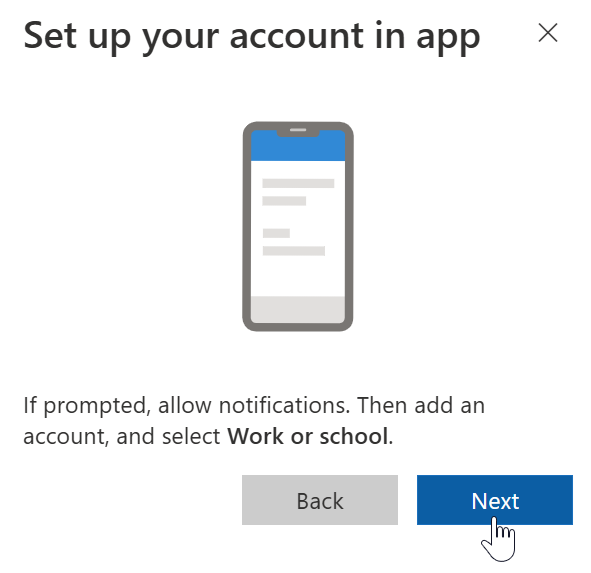
6. On the next screen, “Set up your account in app”, click Next.
7. Open the Microsoft Authenticator app and tap “+” then tap “Add account”
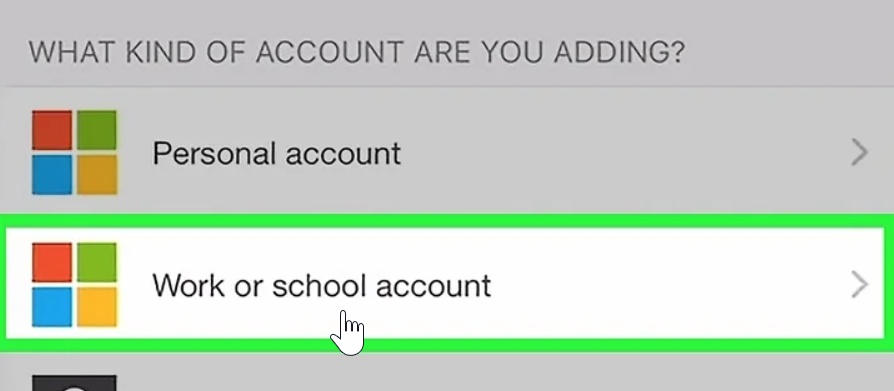
8. On the next screen, select “Work or school account”. This will open the camera in the Microsoft Authenticator app.
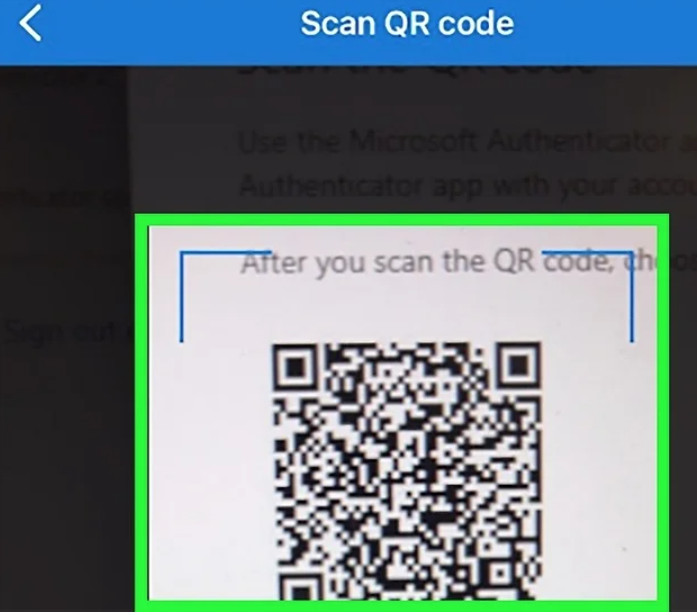
9. Use your phone to scan the QR code on the screen. Once the code is scanned, Microsoft Authenticator will begin to walk you through the final account setup steps. You will be presented with a PIN to verify the connection between tyour account and the Microsoft Authenticator app.
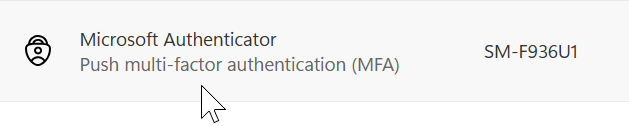
10. Once completed you will have the Authenticator listed in your Security Info profile similar to the one below.
If assistance is needed and your direct supervisor cannot assist, contact the TSC at TSC@leoncountyfl.gov or call 850-606-5502.